Contracts
Introducing historical contracts for faster onboarding
With historical contracts, you can quickly add or import contract lines with historical balances, helping you align your financials and accelerate your go-live process. Instead of recreating all past transactions, simply provide the total billed and recognized amounts as of a specific date, and Intacct automatically records the historical balances to the General Ledger. This enhancement reduces manual effort, improves accuracy, and speeds up implementation.
Key benefits
Accelerate onboarding: Set up contracts using open balances instead of detailed legacy data, minimizing data entry and speeding up implementation.
Improve financial accuracy: Automated journal entries align the General Ledger and subledger from day one.
Streamline data import: Import historical contract lines via CSV with validations to ensure data integrity.
Support business growth: Easily migrate historical data from mergers and acquisitions into Intacct.
What's changed
Previously, going live with Contracts required detailed historical data entry using Active Contract Processing (ACP), which was time-consuming. Now, you can mark contract lines as historical and enter only open balances, reducing manual work.
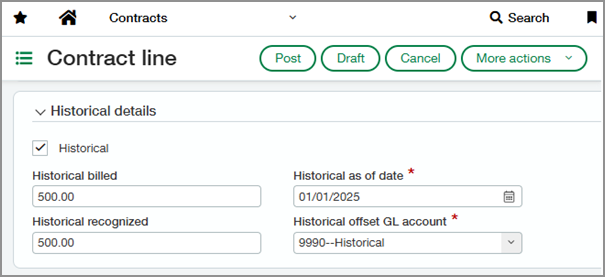
The following new fields are available on contract lines:
Historical: Indicates whether a contract line is historical.
Historical billed: The total billed amount as of the historical date (cannot exceed the flat fixed amount).
Historical recognized: The total recognized revenue as of the historical date (cannot exceed the flat fixed amount).
Historical as of date: Represents the day before go live, separating historical and non-historical data.
Historical offset GL account: Dedicated account used to post historical contract balances.
After non-historical data is posted, the historical details can no longer be edited.
Good to know
Journal entries for historical amounts appear in the contract line’s Transaction history tab and are marked as historical.
Entries in the billing and revenue schedules prior to the historical as of date are also marked as historical.
Historical billed and recognized amounts appear in the contract line summary bar, and the historical offset GL account appears in the Accounts and journals tab.
How it works
Determine scope and go-live date.
Decide your go-live date and identify historical GL balances.
Prepare your environment.
Create a dedicated Historical offset GL account for tracking historical postings.
Add historical contract lines.
Import or manually create contract lines with all required historical detail fields.
Validate your data.
Close AR and GL books through the go-live date to prevent changes, and verify that historical amounts align with subledger and GL balances.
Permissions and other requirements
| Subscription | Contracts |
|---|---|
| Regional availability |
|
| User type | Business Employee Project Manager Warehouse |
| Permissions | Contracts
|
| Configuration |
|
| CSV import | The following fields are available in the contract lines import template:
|
| Restrictions | Historical contract lines are not supported in the following scenarios:
If you need to handle any of these scenarios, you must use ACP. |
